
Fansly for agencies: where to start and what to set up in the first week
On Fansly an agency makes its money in DMs with fans. It loses money there too: a fan writes, nobody answers for a long time, and nobody can see who is on shift right now. Below is the order for launching your first Fansly model in Leeward, from connecting it to the numbers at the end of the first week.
What to decide before you connect a model
Connecting the model takes a single sign-in. The arrangements around her are better settled in advance, otherwise you will be changing them in the middle of live conversations.
- Who owns the agency. Only the owner sees the balance, pays for models and approves team members’ computers.
- Who runs the shift. A manager or team lead watches who is online and who has fans waiting, views a chatter’s screen live, invites chatters and restores the login on accounts whose session dropped.
- When the model will sign in. She needs to sign in to Fansly once, in a Leeward window, the usual way.
- Whether the model is free. A model can be connected to only one agency.
Plan the trial too. Every new model gets 7 days free with full access, and the same model will not get them a second time, even if you delete it and add it again. Connect the model on the day the team is ready to go on shift.
Connect the Fansly model
- Download Leeward to your computer. There are versions for macOS 12 and later (Apple Silicon and Intel) and for Windows x64. The whole team works from the app.
- Create the agency: a name, a work email and a password.
- The owner or a manager clicks “Add creator” and picks Fansly. A sign-in window opens.
- The model signs in to Fansly as usual. Leeward catches the sign-in on its own, the window closes, the account turns “Online”, and its name and avatar are pulled in.
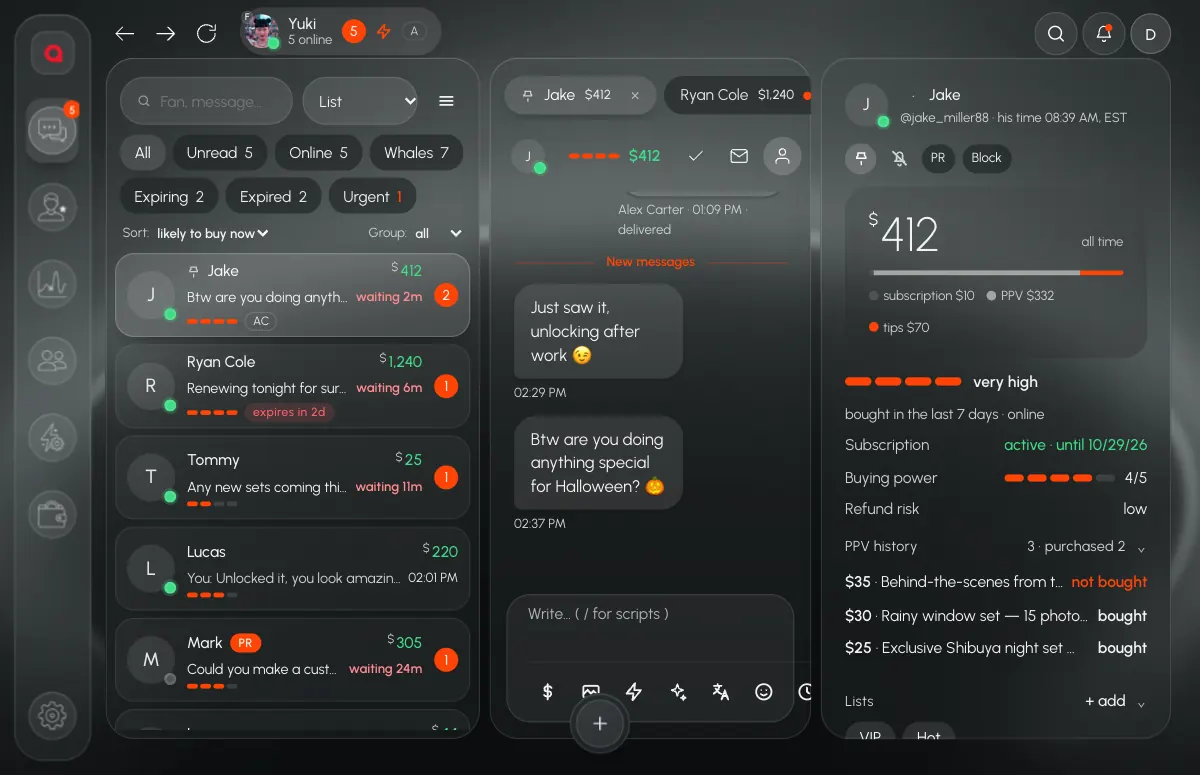
After that the model shows up as a tab in “Inbox”. The tab shows unread chats, how many fans are online and urgent conversations. Once there are several models, the “All” tab gathers them into one feed, and you can pin the model you need or keep it alone in “Focus” mode.
Build the team before the first shift
Team members get into Leeward only by invite. Before you invite people, create positions: the position decides what a person sees and how much they earn.
- Position. This is where permissions are switched on: chats, the media vault, metrics and revenue, the blacklist, automation, the creator browser, “Access only during shift”, “Chat only” and others. Restrictions sit separately: no mass messages, no unsending messages, no uploads to the vault, no creating scripts. The base and the commission for pay are set here too.
- Invite. An email with a link, or a link with an expiry: 1 hour, 24 hours, 3 days, 7 days, 30 days or your own term of up to 90 days. The position and the models are picked right in the invite. An unused link can be revoked.
- Computer. A team member’s first computer is linked automatically. From a new one they wait until the owner clicks “Approve” in “Members → Devices”. A manager can approve chatters’ computers.
A chatter sees only the models assigned to them and only what their position allows. For a newcomer on a first model, chats and the vault are enough; metrics and revenue can be opened later, once they find their feet.
Prepare the chat: vault, scripts, leak filter
In the first shifts on a new model, a chatter spends time hunting for media and making up replies, and fans wait in the meantime. Part of this work can be done in advance.
- Vault. Upload the model’s media with prices and notes. A chatter sends media to a fan but cannot download the original. The vault shows whether a file was sent to this fan and whether he bought it, and sending it again brings up the warning “Already sent to this fan”.
- Scripts and flows. Managers create and edit scripts, and a chatter calls them up with “/”. A flow chains scripts together, and the chatter sees which step comes next.
- Translation. ⌘S on Mac or Ctrl+S on Windows translates the draft into the fan’s language right in the input field, and incoming messages are translated automatically.
- Leak filter. Turn on the ready-made blocks: websites, emails, phone numbers, crypto wallets and “Telegram protection”. A message with a forbidden word will not go out, and the violation is logged: who and with which fan.
How to build your own list of forbidden words is covered in how to stop chatters from taking fans off-platform.
Set up shifts and turn on notifications
Without a schedule nobody covers the model’s night hours, and fans who write at night wait until morning. Set the schedule before the team’s first shift.
- In “Team → Shifts”, set the schedule for the week: who works and at what hours. A chatter clicks “Start shift” and “End shift”, and the hours go to the timesheet.
- If needed, turn on the “Access only during shift” permission in the position. Then chats are closed to the chatter outside their shift.
- Connect the agency’s Telegram bot. Your DMs will get “creator session lost”, leak filter violations, sales and the daily report.
- Set up the first rules in “Automation → Rules”. For example, a new fan writes first and Leeward sends him a welcome. Or a subscription is about to expire and a manager gets a notification in Telegram.
A rule runs on its own and fires once per fan, so the welcome never goes to the same person twice.
End of the first week: which numbers to check
On the dashboard, pick a period and compare it with the previous one. For a new model, read the three cards at the top together: new fans, buyers, transactions. Further down the same screen are the revenue mix (PPV, subscriptions, tips, referrals, refunds), the median reply time and the share of PPV bought.
A separate “FYP” screen shows the model in Fansly’s recommendation feed: FYP views, follower growth, time on profile, the best tag, tags by boost, completion and reach, top media with a retention curve, and the audience’s countries and active hours. The periods are 7, 30 and 90 days.
Only earnings match the Fansly site exactly; the other numbers come from Fansly incomplete. So read the FYP screen as a direction: which tags and media pull, and at what hours the audience is active.
The model’s Fansly posts are published from the “Content” section: right away, on a schedule or as drafts. For promotion there are tracking links: clicks, fans, revenue, ROI and cost per click for each link. Revenue per link is approximate, because Fansly does not say exactly which link each fan came from.
Leeward runs Fansly and OnlyFans models in one app for macOS and Windows. The price is per model, see pricing. For how roles, money and the first-month plan work, read how to start an agency.
Frequently asked questions
How much does it cost to connect a Fansly model?
A new model gets 7 days free with full access. After that the agency pays for each model separately; there is nothing to pay for team members. For plans and billing periods, see pricing.
Where is the model’s login stored, and what does the chatter see?
The model’s login is stored inside Leeward in encrypted form. Each model works in her own separate browser with her own cookies and her own proxy, and the proxy is included in the price. The chatter does not know the model’s login or password and sees only the models assigned to them.
What happens if Fansly logs the model out?
The model’s tab gets a “signed out” mark, and the owner and managers see a “Sessions N” button at the top. Leeward first tries to restore the login on its own, and managers have “Recapture now”. If that does not work, the model signs in manually through the “Creator browser”, and a notification about it arrives in Telegram.
Every model you connect starts with a 7-day free trial. Download Leeward, connect your first Fansly model and give the team a schedule before the first shift.