
Which agency numbers to check every day
If the owner finds out about a bad day from a report at the end of the week, the money is already lost. Below is a routine for every day: which numbers to check in the morning, which during the shift and which once a week, and where they are in Leeward.
Morning: revenue and what it was made of
Open “Analytics → Dashboard”. By default it shows the last 30 days; you choose the period and what to compare it with. Sales show up right away: a fan buys a PPV or sends a tip, and the “today” number moves by itself. The “Refresh” button in the header pulls in fresh numbers.
Look at total revenue and the revenue mix first: PPV, subscriptions, tips, referrals and refunds. When the total drops, the mix shows which stream moved. Look into a burst of refunds separately from weak sales; with the team that is a different conversation.
If the agency runs both platforms, the OF / Fansly switch at the top shows each one separately. The agency’s Telegram bot sends the daily report, and it is handy to read it even before the dashboard. For a wider view, the dashboard has revenue for the last twelve months, with the current month shown as an exact number.
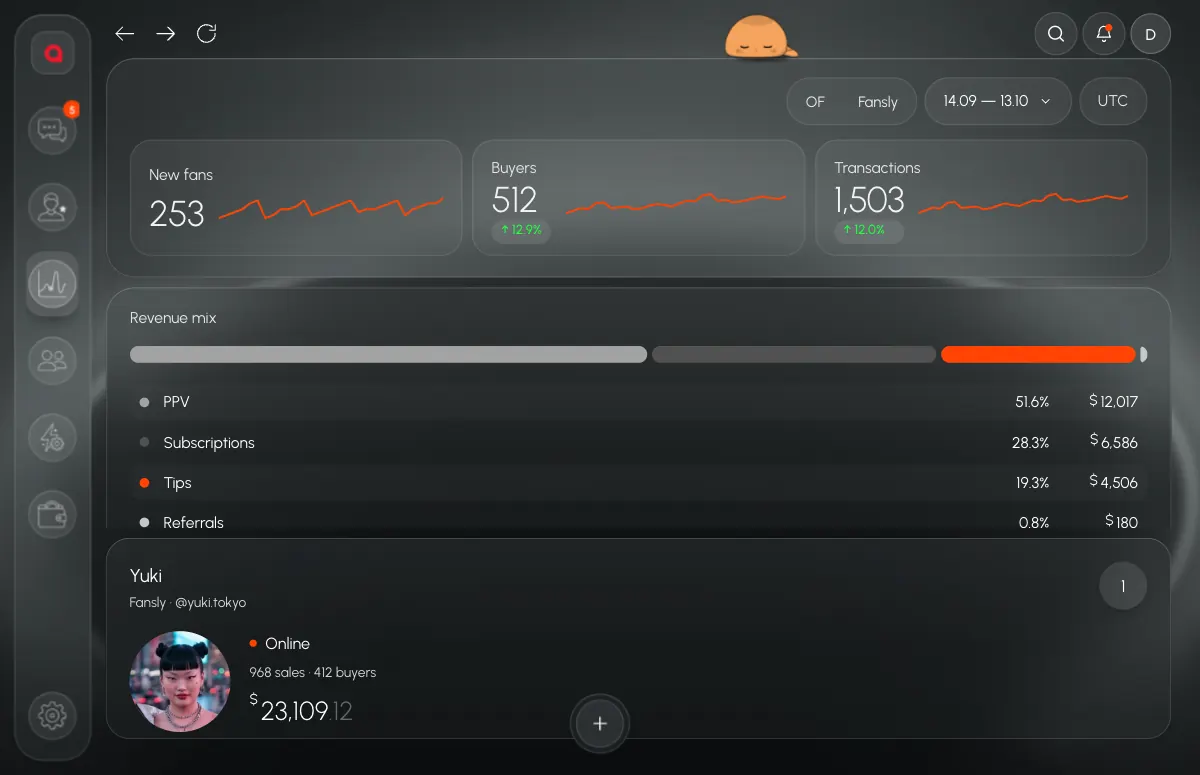
New fans, buyers, transactions
The three cards at the top of the dashboard are read together. New fans fell: look for the cause in traffic and tracking links, and for Fansly models also in the FYP screen. New fans are steady but there are fewer buyers: fans come in and don’t buy, and that is a question for the chat. Buyers are steady but there are fewer transactions: people buy less often, so look at the average order and how many PPV went out.
A step-by-step breakdown of a bad day is in why a model’s revenue dropped.
On shift: waiting for a reply, median, PPV
During the day money is lost in the chat. “Team → Shift now” shows it in the moment: how many fans are waiting, unread chats, messages this shift, PPV sent and bought, revenue and the median reply time for each chatter.
- Waiting for a reply. A fan who got no answer may leave without buying. Look here before you look at revenue.
- Median reply time. It is both on the dashboard and in each chatter’s row. If the median went up, check who is on shift and whose conversations are piling up.
- PPV sent and bought. Many sent and few bought: the wrong offers or the wrong time. Few sent: the chatter isn’t selling. The dashboard has a tile with the share of PPV bought.
- Chatter ranking. On the dashboard you can view it by revenue, by PPV sold or by earnings per hour.
- Model cards. Each model on the dashboard has revenue for the day and for the period, PPV sent and bought, who is waiting for a reply and who is running the shift. A model nobody is working on right now stands out at once.
You can also ask the AI administrator: who is on shift, how much was made, where unanswered chats are piling up, which accounts dropped. It answers with numbers from the CRM, sees exactly what the person asking is allowed to see, and never writes to fans. How to watch a shift live is covered in how to monitor chatters in real time.

Whales and subscriptions
The “Whales”, “ARPPU”, “Rebill” and “Churn” tiles answer a different question: how many fans the model depends on and how many of them stay. One whale who didn’t buy today can spoil the day even though nothing broke. Churn that grows week after week says more about a problem than one day does.
Every day check the “Whales”, “Expiring” and “Expired” filters in the inbox. The “subscription expiring soon” rule can notify a manager in Telegram by itself, so a live chatter handles the renewal.
The “Fans” section takes a wider view: one fan base for all models with the lists “Whales”, “Buyers”, “Never bought”, “Dormant”, “New”, “Unread”, “Awaiting reply” and “Expired”. Sort by spend, last message, last purchase or last visit, and open the conversation straight from the row. The “Dormant” list is good to work through in the quiet hours of a shift.
Signed-out models and the balance
While a model is signed out, nobody answers her fans. The owner and managers have the “Sessions N” button at the top with the dropped accounts, and Telegram sends “creator session lost”. Start the day by making sure this counter is empty.
The second morning question is the balance. If a model is not paid, it gets locked: chat, mass messages and data updates for it stop. Telegram sends payment reminders and a “low balance” warning.
The whole morning check, in order:
- Read the daily report in Telegram.
- Open the dashboard: total revenue, revenue mix, comparison with the previous period.
- Read the three cards at the top: new fans, buyers, transactions.
- Check that the “Sessions N” counter is empty.
- Look at whales and expiring subscriptions.
- Make sure the balance is enough and no model is locked.
Once a week: reports, FYP, payroll
“Analytics → Reports” builds a table by model: net, gross, purchases, buyers, average order, ARPPU, subscriptions, PPV, bundles, paid messages, tips, streams, referrals and refunds for 7, 30, 90 or 365 days. CSV export: transactions, team member sales, creators.
For Fansly models, open “FYP” once a week: FYP views, follower growth, the best tag and top media for 7, 30 or 90 days. Only earnings match the Fansly site exactly; the other numbers come from Fansly incomplete, so read them as a direction.
Tracking links show where fans and money came from: clicks, fans, revenue, ROI, costs, cost per click and conversion for each link, first and last touch. The “Traffic quality” tab splits traffic into “Clean”, “Suspicious” and “Bots”. Treat revenue per link as approximate: Fansly doesn’t say exactly which link each fan came from.
Check payroll with hours, sales, $/hour, base, percentage and total for each person once a week: a mistake in hours is easier to catch before the month is over. In the Pro plan the dashboard adds alerts: a day that drops below normal and a forecast below the monthly goal; the owner sets the goal.
Leeward runs OnlyFans and Fansly models in one app for macOS and Windows. The price is per model, see pricing.
Frequently asked questions
Do the numbers on the dashboard update by themselves?
Sales appear right away: a fan buys a PPV or sends a tip, and the “today” number moves by itself. The rest is pulled in by the “Refresh” button in the header.
Will the numbers match my Fansly account?
Earnings match the Fansly site exactly. The other numbers come from Fansly incomplete, so read FYP stats as a direction and don’t build exact calculations on them.
Can I export the numbers to my own spreadsheet?
Yes. “Reports” has CSV export for transactions, team member sales and creators, and payroll exports to CSV too. For your own reports there are webhooks and read-only API keys.
Every model you connect starts with a 7-day free trial. Download Leeward, and for a week start every morning with the dashboard and “Shift now”.