
Chatter shifts: the schedule, who is on shift and how to hand a shift over
In the revenue numbers, an empty hour in the schedule looks just like a bad day for the model: fans write and nobody is there to answer. Here is how to set up shifts in Leeward, how to see who is working right now and how to hand a shift over so the next chatter doesn’t start from zero.
The weekly shift schedule
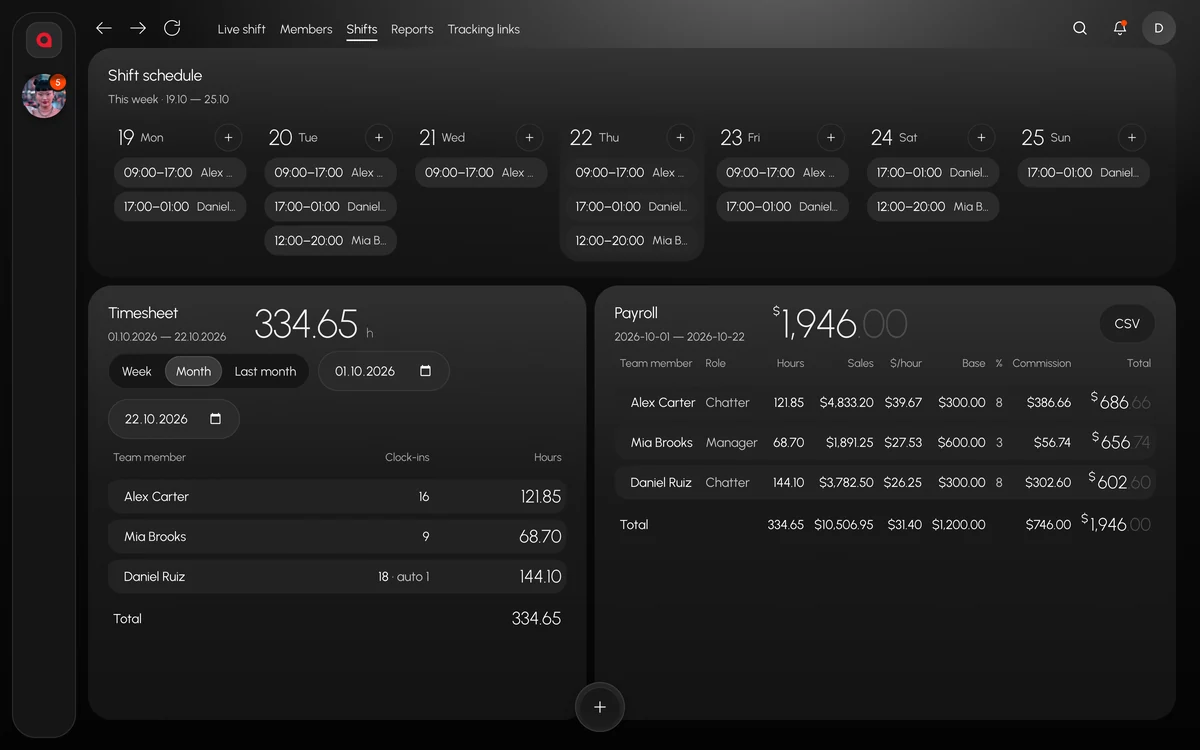
A manager sets the schedule in “Team → Shifts”: who works this week and at what hours. A chatter has a “Shifts” section in their menu. At the start of work they click “Start shift”, at the end “End shift”, and the hours go to the timesheet.
Before you fill in the schedule, decide a few things:
- How many shifts there are in a day and at what hour each one starts. Name them the way the team says it: “Shift 1”, “Shift 2”.
- Who covers the night. If nobody is on the model at night, fans who write at night wait until morning.
- Whether you need an overlap. When two shifts overlap a little, chatters have time for the handover.
- Whether to turn on the “Access only during shift” permission. With it, chats are closed to the chatter outside their shift.
- Who the team lead of each shift is. In the shift’s group in team chat, the team lead is set separately from the chatters.
If a team lead is setting up shifts for the first time, the AI administrator walks them through it step by step: create a shift, add a team member, assign a model. The final click is made by a person.
The first minutes of a shift
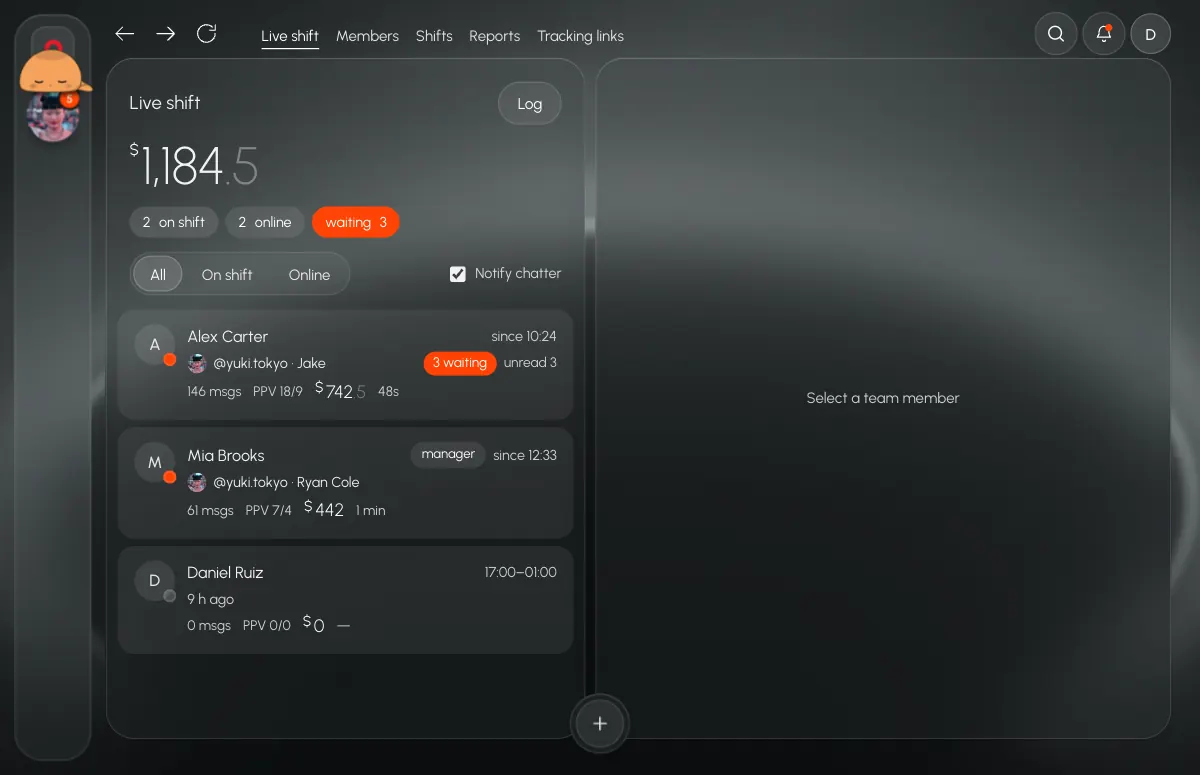
The team lead opens “Shift now”. At the top are the shift’s revenue and counters: how many people are on shift, how many are online and how many fans are waiting. Below is a row for each team member with one of four statuses:
- On shift and online: working to schedule.
- On shift but not online: clocked in and stepped away. This is where the team lead looks first.
- Online without a shift: working outside the schedule.
- Offline: next to it you see when the person was last online.
The team lead sends a one-click notification to anyone who is on shift but not online. If the Alerts channel is on in team chat, it will post on its own, 15 minutes in advance, that the shift is about to start.
Each shift can have its own group in team chat: hours, models, team lead and chatters. The group shows how many people are on shift and how many are online right now, and that is also where the team lead writes at the start of the shift what today’s focus is.
During the shift
A chatter’s row shows since when they have been on shift, which model and which fan they are in right now, how many fans are waiting, how many chats are unread, how many messages they sent this shift, PPV sent and bought, revenue and the median reply time.
- Look at waiting fans before revenue. A chatter whose waiting fans keep piling up is losing money right now.
- Compare messages and PPV. Many messages and few PPV means the chatter is chatting but not selling.
- If the numbers look off, open the chatter’s screen. Watching is read-only: the model, tabs, the open conversation and the draft are visible as they are, and you can’t type for the chatter. Every watch goes into the log.
- Keep the Alerts channel at hand. It will post on its own if fans have been waiting for a reply for more than 30 minutes.
- Watch the model tabs. A “signed out” mark means the platform logged the model out and nobody is answering her fans right now. A manager restores the login through “Sessions N”.
How to read these numbers without hovering over people is covered in how to monitor chatters in real time.
Two chatters on one model
If two people work one model in the same shift, they must not write to the same fan at the same time. The model’s inbox can be split into 2–9 parts between chatters, and each gets their own share of the conversations. A conversation row shows which colleague is in it right now, so at the turn of shifts it is clear whether a fan is taken or free.
In a busy hour the conversation list updates all the time. While the chatter’s cursor is over the list, the order doesn’t jump: new conversations collect in a “↑ N new” line, and the chatter doesn’t open the wrong fan by mistake.
Shift handover
At the turn of shifts you lose what the leaving chatter kept in their head: who promised to buy in the evening, whom they told “I’ll send it later”, who is waiting on a private request. Before “End shift” they do four things:
- Write a team note in the fan card for every open conversation. Colleagues see notes right away, and the next chatter will find them right in the conversation.
- Mark fans’ private requests with the PR tag so they don’t get lost in the general list.
- Post a short summary in the shift group: who is waiting for a reply, who was promised what, what didn’t sell.
- Close the shift with the button. If they forget, the shift closes by itself, and the timesheet marks it “auto”.
The new chatter starts with the “Unread” filter or the “likely to buy now” sort. It lifts to the top the fans who are online, have spent a lot, are waiting for a reply or left a private request.
At the turn of shifts the team lead opens “Shift now” and checks two things: the leaving chatter has no waiting fans left, and the new one is already on shift and online.
End of the week: timesheet and payroll
The timesheet shows hours by day for the week and for the month. Only managers see payroll: hours, sales, $/hour, base, percentage, commission and total for each person. The total is the monthly base plus a percentage of sales at the position’s rate. Payroll exports to CSV. Leeward does not pay people; it is a calculation.
At the end of the week go through the timesheet and find shifts marked “auto”: these are forgotten shifts, and their hours are worth checking with the person before payroll. “Members” has metrics and stats for each person and an action log, if you need to go over a disputed day.
How to choose the rate and the percentage is in how to pay chatters. Leeward runs OnlyFans and Fansly models in one app for macOS and Windows, and the price is per model, see pricing.
Frequently asked questions
Can a chatter work outside their shift?
If their position has the “Access only during shift” permission on, chats are closed to them outside the shift. Without that permission they can work, and “Shift now” will show them as “online without a shift”.
What happens if a chatter forgets to end the shift?
A forgotten shift closes by itself. The timesheet marks it “auto”, and such days stand out when you check hours.
Does a chatter see that the team lead is watching their screen?
If the owner turned on the “manager is viewing” mark for them, yes. Every watch is written to the log: who watched whom, when it started and for how long. The owner can watch everyone, a manager only chatters.
Every model you connect starts with a 7-day free trial. Download Leeward, set the schedule for the week and run your first shift handover through fan notes.